Short answer: after a major version upgrade such as Android 17 (rolling out to Pixel phones since 16 September 2026) or One UI 9 on Galaxy devices, seven settings deserve an immediate check: re-enabled permissions, the new notification behaviour, per-app battery optimisation, encryption and backup of your messages, diagnostic data sharing, permissions to install unknown apps, and the state of Play Protect. Allow ten minutes, once.
For two days, Nadia, 37, a nurse in Villeurbanne, thought her Galaxy S24 had a hardware fault: battery drained by 2 p.m., WhatsApp notifications no longer arriving, and an unfamiliar blue dot at the top of the screen. Her phone had simply moved to One UI 9. Nothing was broken: the settings had shifted.
That's the unwritten rule of big Android updates. A major version doesn't layer itself over the old one, it remaps settings: some options change name, others change menu, and a few revert to their default value. And the default value, with every manufacturer, favours discovering new features — not your battery life or your privacy.
What actually changes under the hood
Android 17 on Pixel: interface, digital wellbeing and privacy indicators
Google began rolling out Android 17 to compatible Pixel phones from 16 September 2026, with a series of interface and digital wellbeing changes documented on the official Google blog and in the Android release notes. The two changes that raise the most questions in France:
- the blue dot that has appeared at the top of the screen for many users: it's an activity indicator tied to background services and the new notification layer, not a spy or a bug;
- a reworking of Digital Wellbeing and the focus modes, which can override the "Do Not Disturb" schedules you had set up.
One UI 9 on Galaxy: a rollout in waves, down to the mid-range
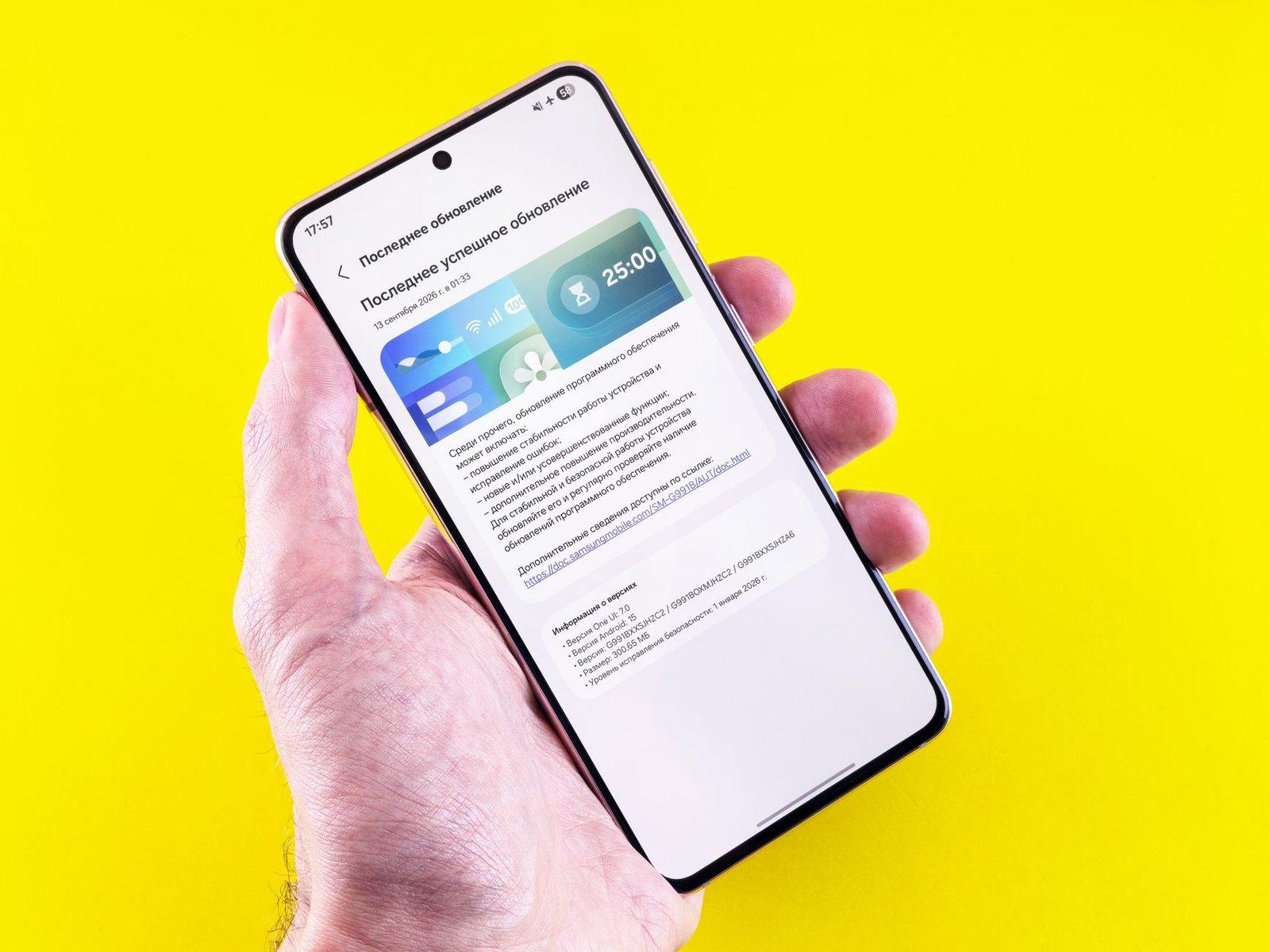
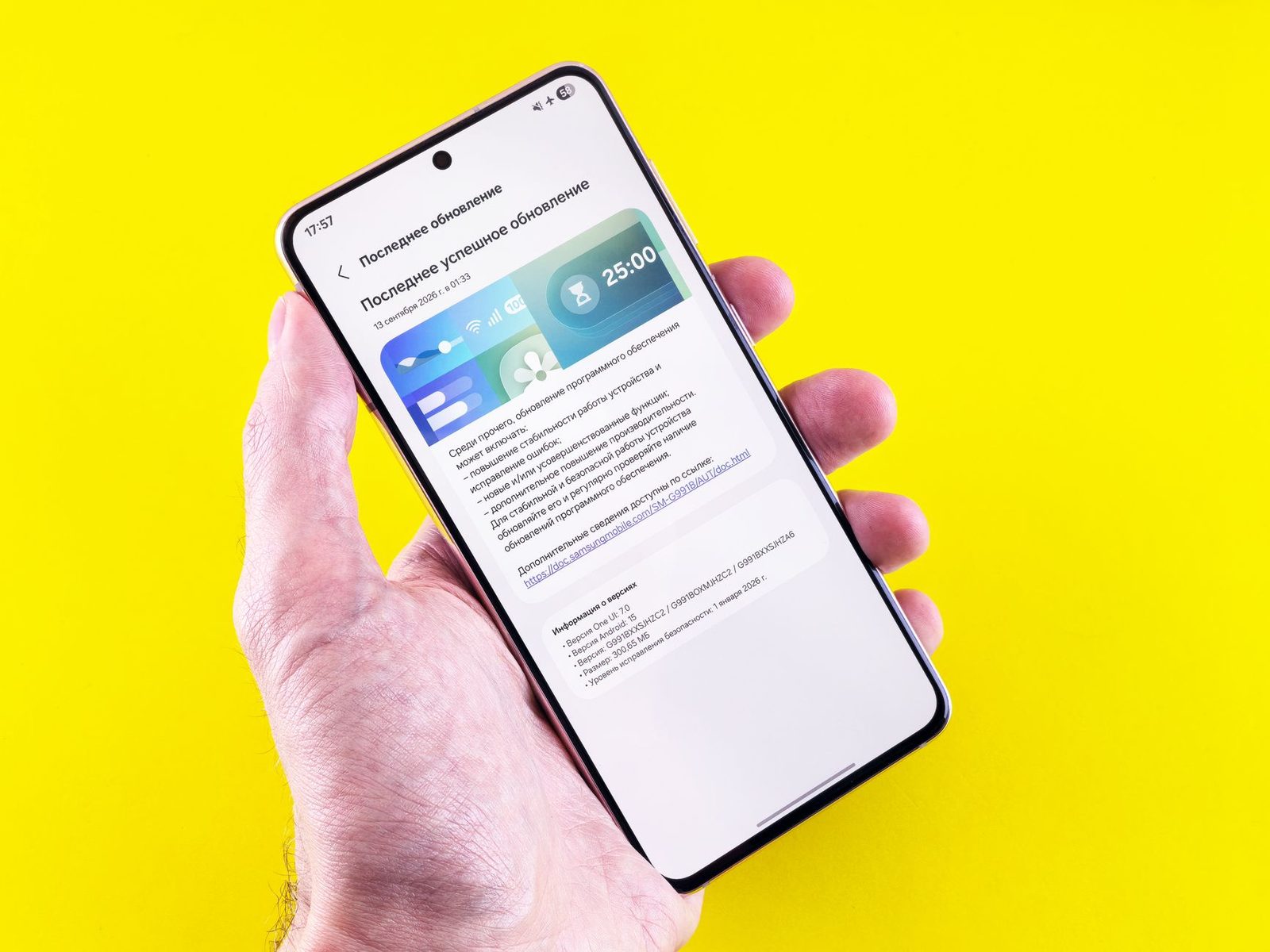
On Samsung's side, One UI 9 is gradually working its way down the range. Recent Galaxy S models were served first, then the tablets and foldables, and mid-range models such as the Galaxy A57 received the update in early October 2026. Samsung publishes its schedules by country and by model in the Samsung Members app, under "Notices": it's the only reliable source for finding out whether your model is being served in France — far more so than lists copied from blog to blog.
Remember: never force an update using a file downloaded anywhere other than Settings → Software update. Fake update tools are one of the most common vectors for installing malicious apps on Android.
The 7 settings to check the same day
1. The app permissions the update "refreshed"
This is the most important point, and the most overlooked. During a version upgrade, some apps ask for permissions again, and one distracted tap on "Allow" restores access you cut off two years ago.
The path:
- Settings → Security & privacy → Privacy → Permission manager (Pixel) or Settings → Security and privacy → Permissions (One UI 9).
- Open Location, Microphone, Camera, SMS, Call logs and Contacts in turn.
- For location, switch everything that isn't a navigation app back to "Allow only while using the app".
- Check the SMS category: only your default messaging app has a legitimate reason to be there. A game, a torch app or a photo editor that reads your texts should be uninstalled, no discussion.
Android 17 and One UI 9 both show a 7-day privacy dashboard: it tells you which app used the microphone, the camera or your location, and when. It's the most eloquent tool for sorting things out without any theory.
2. Notification behaviour, reset to zero
After the update, two classic symptoms: notifications that no longer arrive, or on the contrary a flood of promotional notifications.
- For missing notifications: Settings → Apps → [the app] → Notifications, then check that the categories are enabled. Also check Settings → Apps → [the app] → Battery → Unrestricted for messaging apps, otherwise the system cuts off their background activity.
- For intrusive notifications: long-press an unwanted notification → Turn off notifications for that specific category, rather than muting the whole app.
- Reconfigure your schedules in Settings → Digital Wellbeing (Pixel) or Settings → Modes and Routines (One UI 9), which may have been reset.
If you work in noisy environments or on the move, the step that really changes everyday life isn't software-based: a well-configured pair of noise-cancelling earbuds set up through the manufacturer's app lets you enable a "calls only" mode and keep the rest of your notifications silent.
3. Google Messages, RCS and encryption
This is the setting most often disrupted by a major update, because the RCS layer re-registers with the network.
- Open Google Messages → profile picture → Messages settings → RCS chats.
- Check that the status reads "Connected". If it stays stuck on "Setting up", turn the option off, restart the phone, then turn it back on.
- Inside a conversation, the small padlock next to the send button confirms end-to-end encryption. No padlock = the message is sent as a standard, unencrypted SMS.
- If your verification codes no longer arrive, see our guide on diagnosing undelivered text messages before blaming your carrier.
Two useful clarifications: a message sent as a standard SMS is never end-to-end encrypted, and encrypted RCS only works between compatible parties. For genuinely sensitive exchanges, we lay out the trade-offs in our comparison of secure messaging apps.
4. Battery: why it drains for 48 to 72 hours
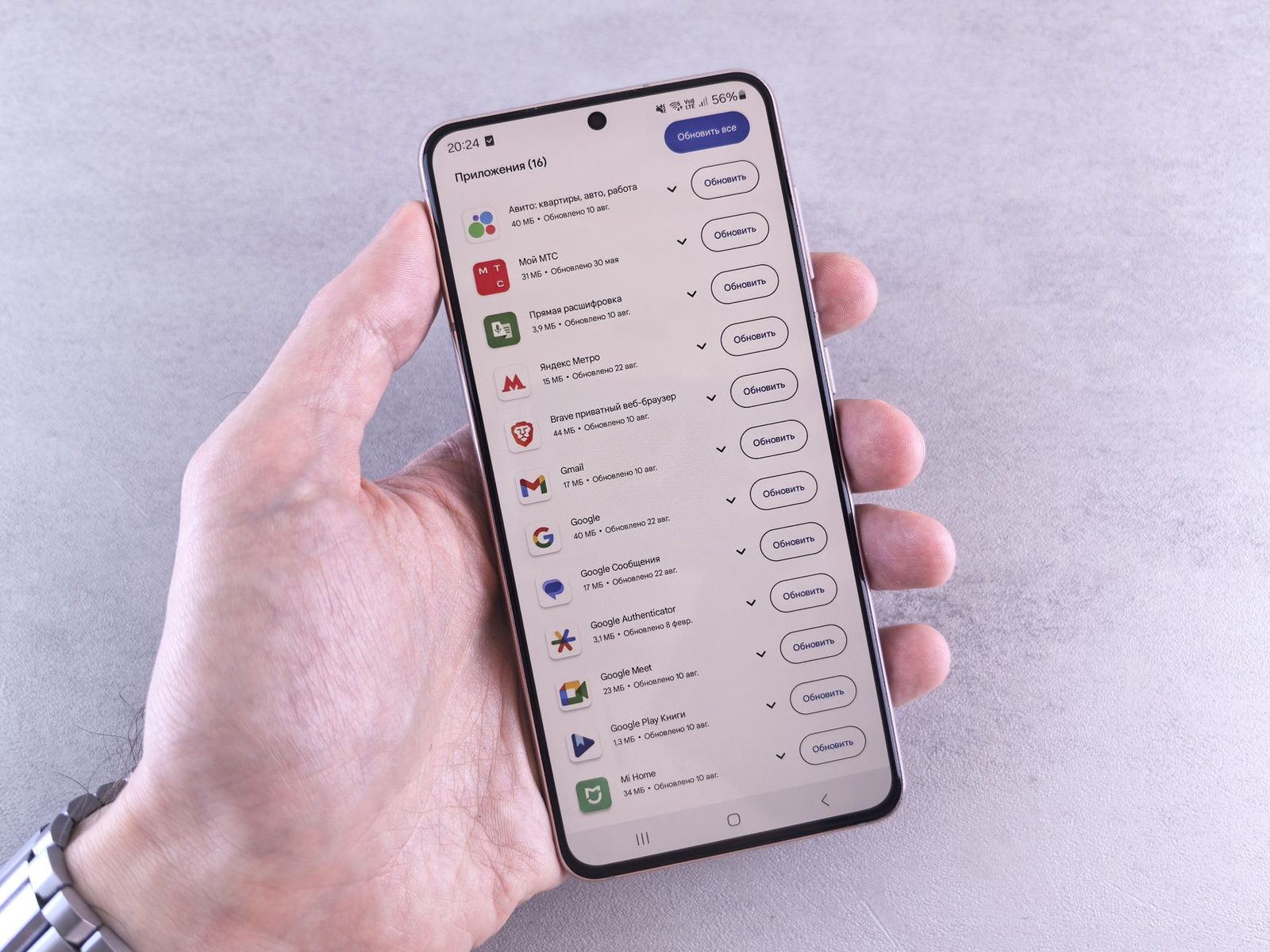
Every major update triggers a re-indexing phase: photos, apps, system search, on-device AI models. It is normal for battery life to drop for two to three days. What isn't normal is for it to continue after a week.
What to do, in order:
- Let 72 hours pass before drawing any conclusions.
- Then open Settings → Battery → Battery usage and sort by consumption since the last full charge.
- For any abnormally greedy app that isn't a messaging or navigation app: Battery → Restricted.
- Enable Settings → Battery → Battery protection (One UI 9) or Optimised charging (Pixel), which caps charging at 80% when the phone spends the night plugged in.
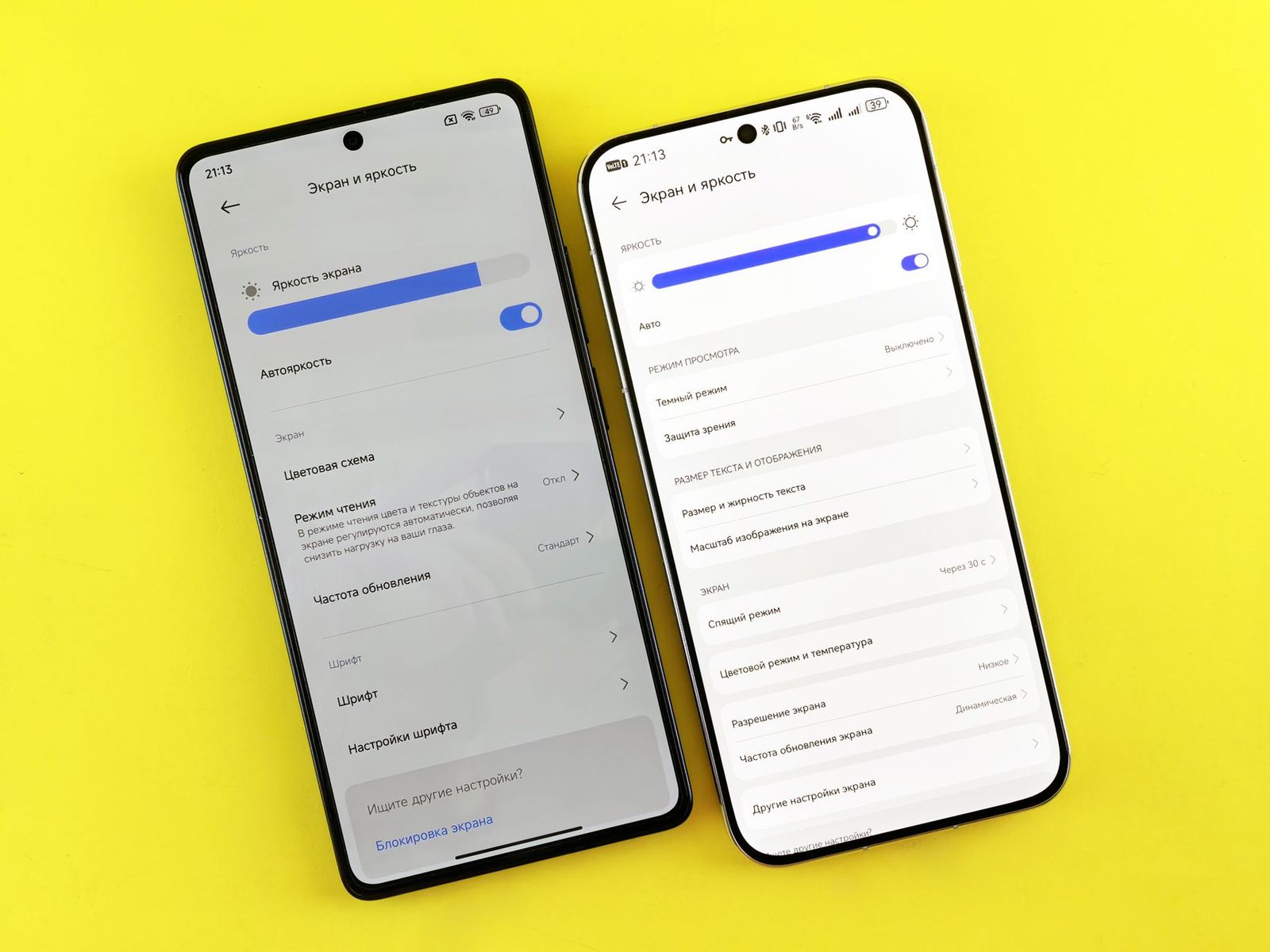
- Turn off the new interface animations if your device is more than three years old: Settings → Accessibility → Reduce animations.
If your phone is more than three years old and battery life was already tight before the update, Android 17 isn't the problem — the cell is. While you wait for a workshop replacement, a compact USB-C power bank of 10,000 mAh is more than enough for a working day, and a 45 W GaN charger noticeably cuts the time spent plugged in.
5. Backups, to be checked after the update, not before
Many readers conscientiously back up before updating, then never check that the backup resumed afterwards. And that's exactly where it breaks.
- Settings → Google → Backup: check the date of the last backup and run one manually.
- In Google Messages → Settings → Backup & restore, confirm that SMS and MMS backup is active.
- For photos: Google Photos → profile → Photos settings → Backup, checking your remaining quota, because app system data also eats into your Drive space.
For archives you want to keep outside the cloud (family photos, official documents), a USB-C flash drive for smartphones remains the simplest option: plug it in directly, copy via the Files app, nothing to install.
6. Diagnostic data and ad personalisation
A version upgrade often brings back the "Improve your experience" consent screens. Accepted on autopilot, they re-enable the sending of usage data.
What to review:
- Settings → Google → All services → Ads: reset your advertising ID and turn off personalisation.
- Settings → Privacy → Usage & diagnostics (Pixel) or Settings → Security and privacy → Send diagnostic data (One UI 9): untick it if you don't want to take part.
- On Galaxy devices, also check Settings → Accounts → Samsung account → Privacy, where the personalisation options for Samsung services live.
A useful legal reminder: the CNIL considers that this type of tracker requires free and informed consent. You can refuse at any time, with no loss of functionality, and change your mind later.
7. Play Protect, screen lock and unknown sources
One last pass, the quickest of all:
- Play Store → profile → Play Protect → Settings: both switches (app scanning, harmful app detection) must be on.
- Settings → Apps → Special access → Install unknown apps: revoke the permission for anything that doesn't absolutely need it, especially browsers and messaging apps. It's the number one entry point for malicious installs triggered by a link received in a message.
- Settings → Security & privacy → Screen lock: a 6-digit PIN minimum, and make sure sensitive notifications are hidden on the lock screen (Notifications → Notifications on lock screen → Hide sensitive content). A banking code visible without unlocking is a SIM swap made easy.
Summary table
| Setting | Path (Pixel / One UI 9) | Risk if you skip it |
|---|---|---|
| Permissions | Security and privacy → Permissions | Microphone, location, SMS re-enabled |
| Notifications | Apps → [app] → Notifications | Missed messages or spam |
| RCS | Google Messages → RCS chats | Unencrypted messages, lost codes |
| Battery | Battery → Battery usage | Battery life cut in half |
| Backup | Google → Backup | Loss of texts and photos |
| Diagnostics | Privacy → Usage & diagnostics | Usage data shared |
| Play Protect | Play Store → Play Protect | Apps not scanned |
Frequently asked questions
Should you wait before installing a major update?
For monthly security patches: no, install immediately. For a major version (Android 17, One UI 9): waiting one to two weeks after the rollout opens for your model is reasonable, giving the first fixes time to land. Beyond a month, you're mainly depriving yourself of security patches.
My model isn't on the list — is that normal?
Yes. Android rollouts happen in waves, by country and by commercial model number. Check in Settings → Software update → Download and install, then in Samsung Members (Galaxy) or on Google's Pixel support page. Never install an update file found on a forum.
Does the Android 17 blue dot mean I'm being spied on?
No. It's a system activity indicator added with the new interface layer. If you want to know exactly which app used what, the 7-day privacy dashboard is the factual answer.
Can an update erase my text messages?
Normally no, but a failed restore or a change of default messaging app can make them invisible. That's why checking your backup after updating (point 5) is non-negotiable. If you need to send an urgent message while your phone is stuck installing, the Mon SMS Gratuit home page lets you get by from any browser, and our guide explains how to send a free text message step by step.
What if everything worked better before?
Rolling back to the previous version is neither officially supported nor recommended: it wipes your data and removes security patches. You're better off reporting the problem through the built-in feedback tool (Samsung Members, or the Pixel Help app) and waiting for the fix, which usually arrives within the month.
Key takeaways
A major Android update is not a neutral event: it reopens doors you had closed. The ten minutes spent in these seven menus are worth more than three weeks wondering why the battery only lasts until 2 p.m. and why notifications arrive two hours late. Do the rounds once, note the date, and start again at the next major version — in practice, once a year.